From intake to finalized chart, in one system
Cadence replaces the spreadsheet-and-paper shuffle that most Mobile Integrated Health programs run on. One login gets a field team from "who am I seeing today" to "here's my route" to "here's the signed, co-signed, encrypted chart" to "here's my end-of-day report" — without re-entering the same information three times.
Below is the day-to-day workflow, in the order your team actually lives it.
1. Security, Audit & HIPAA Compliance
Before anything else — before a patient is entered, a visit is scheduled, or a chart is signed — Cadence is built from the ground up to protect patient data, create a defensible audit trail, and meet the expectations of HIPAA-conscious organizations. This isn't a feature bolted on after the fact. It's the foundation everything else sits on.
Encryption at every layer
All data in transit is encrypted via HTTPS/TLS — enforced at the infrastructure level, no exceptions. Patient images, consent signatures, insurance card photos, and clinical attachments are encrypted at rest using AES-256-GCM — the same standard used by the U.S. government for classified data. Database-level encryption (InnoDB tablespace encryption) protects the entire dataset on disk. Encryption keys are stored separately from the data they protect.
Append-only audit log
Every action in Cadence — every login, patient view, chart edit, status change, report lock, and administrative action — is recorded in an append-only audit log. Database-level triggers block any attempt to modify or delete audit records, even by a database administrator. The log captures who performed the action, what changed, when it happened, and the IP address it came from.
Login audit with geolocation
Administrators have access to a dedicated Login Audit page showing every login attempt (successful and failed), logout, and MFA verification — with the user's IP address and automatic geolocation (city, state, ISP). If someone logs in from an unexpected location, you'll see it immediately. Date-range filtering lets you review any time period.
Multi-factor authentication & session timeout
TOTP-based MFA (compatible with Google Authenticator, Authy, and any authenticator app) is available for every user. Administrators can require MFA for all users organization-wide — unenrolled users are redirected to setup before they can access any data. Recovery codes are generated at enrollment for account recovery. Sessions automatically expire after 15 minutes of inactivity per HIPAA requirements — no exceptions, including after MFA.
Role-based access control
Multiple distinct access levels — from Field Staff through Lead, Supervisor, Manager, up to Administrator — each with precisely scoped permissions. Staff see only their own patients and calendars (plus explicitly shared ones). Supervisors see their direct reports. Managers see their full org subtree. Reports, charts, and administrative functions are gated at every level. A dedicated Account Administrator role provides full analytics and tree-scoped management for its own subtree — placeable anywhere in the org chart — without full system-wide access.
Consent management
Disposition-driven consent forms — treatment/transport/HIPAA consent for treatment calls, refusal acknowledgment for refused care — are signed on-screen with a canvas signature pad. Each consent form is version-tracked: if an administrator updates the consent text, every unsigned chart automatically requires a fresh signature. Consent signatures are encrypted and stored as tamper-evident records tied to the chart.
Chart integrity chain
A finalized chart passes through a verifiable chain: authored → locked → consent-signed → co-signed → finalized. Each step is timestamped, attributed to a specific user, and logged. Supervisor co-sign (when enabled) requires a second provider's canvas signature before a chart can be finalized. Charts flagged for QA review trigger a separate supervisor alert. The entire chain is immutable once complete.
Company-based patient isolation
For organizations serving multiple health plans or agencies, Cadence enforces company-level access control. Administrators assign users to specific companies — a user not on the access list for a company cannot view, edit, or create notes for that company's patients. Enforced on patient lists, individual patient records, notes, charts, and flags. Super admins bypass restrictions for oversight. Configured per-company in Admin → Companies → Authorized Users, and per-user during user creation.
Password security & self-service recovery
New users can receive a welcome email with a temporary password — they're forced to change it on first login before accessing any data. Administrators can reset passwords with identity verification (the user's security question is shown to the admin, who asks it verbally before proceeding). Users set up their own security question + recovery key in Settings (requires current password to configure). The "Forgot Password" flow on the login page verifies the answer or recovery key before emailing a temporary password. Account enumeration is prevented — invalid emails return the same response as valid ones.
Active Directory & LDAP integration
Cadence connects to existing Active Directory or LDAP servers (including lldap) for centralized user authentication. When enabled, users sign in with their existing AD credentials — no separate password to manage. LDAP groups map directly to Cadence roles, managers, and company access lists: when a new user authenticates for the first time, Cadence auto-provisions their account with the correct role, org-tree placement, and company assignments derived from their group membership. Local login remains available as a fallback. Configured from Admin → LDAP with a live connection test.
Offline resilience & idempotency
Cadence is a PWA (Progressive Web App) — installable on phones and tablets, with full offline support. When connectivity drops, the service worker caches pages and schedule data for read access, and queues any changes (appointment updates, notes, chart saves) in encrypted local storage. When the connection returns, queued changes replay automatically. Each queued request carries a unique idempotency token — the server deduplicates replayed requests so nothing is processed twice, even if the sync fires multiple times.
Cadence is self-hosted — your data stays on your infrastructure, under your control. No cloud vendor has access to your patient records. Combined with encryption at rest, encryption in transit, append-only audit logging, role-based access, company-level patient isolation, and idempotent offline sync, Cadence provides the technical controls expected by HIPAA without requiring a third-party BAA for the platform itself.
2. Patient Intake
A new referral comes in. Whoever takes it — field staff, supervisor, or via the bulk import tool — adds the patient once: name, address, region, company/line-of-business, member ID. Cadence geocodes the address immediately (self-hosted Nominatim, full USA coverage) so the patient is route-ready from the moment they're created.
Patient status tracks the whole lifecycle — New → Enrolled → Follow-up → Transferred → Graduated / Declined / Discharged / Unreachable — so nobody has to ask "are we still seeing this person?"
Bulk import with clinical data & zone assignment
Upload a CSV from your health plan or iPro export and Cadence maps every column — including iPro Clinical Risk Level, iPro Impactability Level, ER diagnosis codes, ER/IP visit counts, last ER/PCP dates, and PCP name and contact. Zone assignment runs at import time: auto-assign by geocoded address, set a single zone for the entire file, or leave blank and assign later. The import preview shows a live mapping of every column before anything is committed. Duplicate member IDs update the existing record rather than creating a second one.
Patient flags & clinical detail card
Custom flag alerts (configured in Admin → Patient Flags) attach to individual patients — colored badges that appear on hover over the patient's name in the patient list. Flags surface immediately without cluttering the list view: hover to see all active alerts, click through for the full record. The patient profile shows a dedicated Clinical & Referral Details card with color-coded risk and impactability scores, ER and IP visit history, last contact dates, diagnosis codes, and PCP contact information — everything a medic needs before walking in the door.
Company filter & assigned-patient view
The patient list includes a Companies filter — checkboxes showing every health plan or agency the user can access, checked by default. Toggle any company off to focus on a single client's population. The [Name]'s Patients button filters the list to only patients assigned to that specific staff member — one click from "all 300 patients" to "my 22."
3. Scheduling
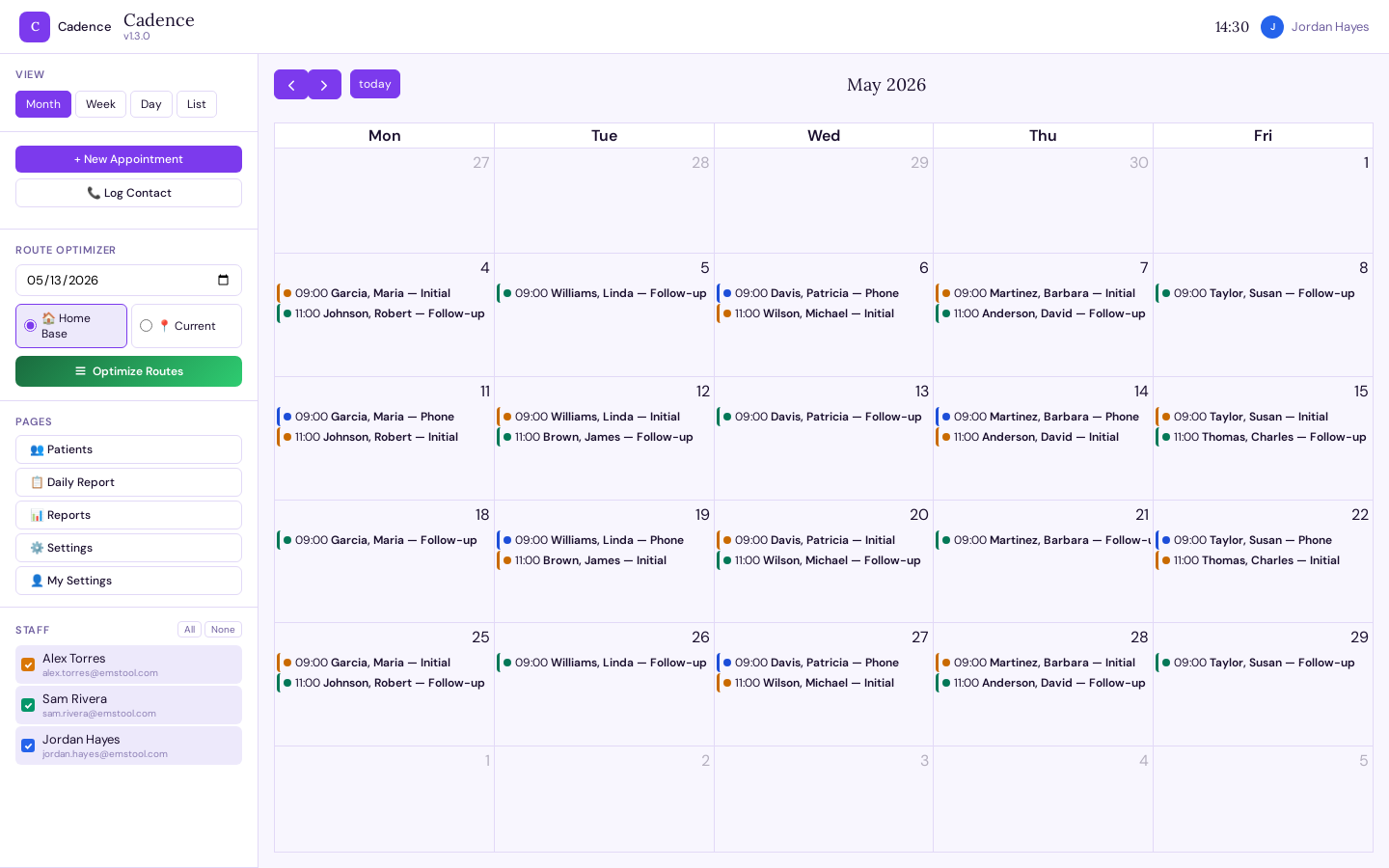
The calendar is the home screen. Drag-and-drop week and day views (built on FullCalendar), color-coded per staff member, with Initial (90 min), Follow-up (45 min), and Phone (30 min) appointment types pre-set to sane durations — adjustable per visit, or recurring on a weekly/biweekly/monthly pattern.
Click a time slot, pick a patient, save.
New patients can be created inline mid-booking — no second screen, no losing your place. Any appointment can include a meeting or video link (Zoom, Teams, Google Meet, or any URL) — visible to the medic on the appointment detail so telehealth visits are one tap away.
Work days & calendar focus
Each staff member sets their work days in User Settings — the days they actually work, not just a generic Mon–Fri assumption. Enabling Hide Non-Work Days collapses off days from the calendar entirely, so Tuesday–Saturday staff see a clean five-day view instead of a seven-day grid with two empty columns. Supervisors scheduling across a mixed-schedule team see each person's actual availability without guessing.
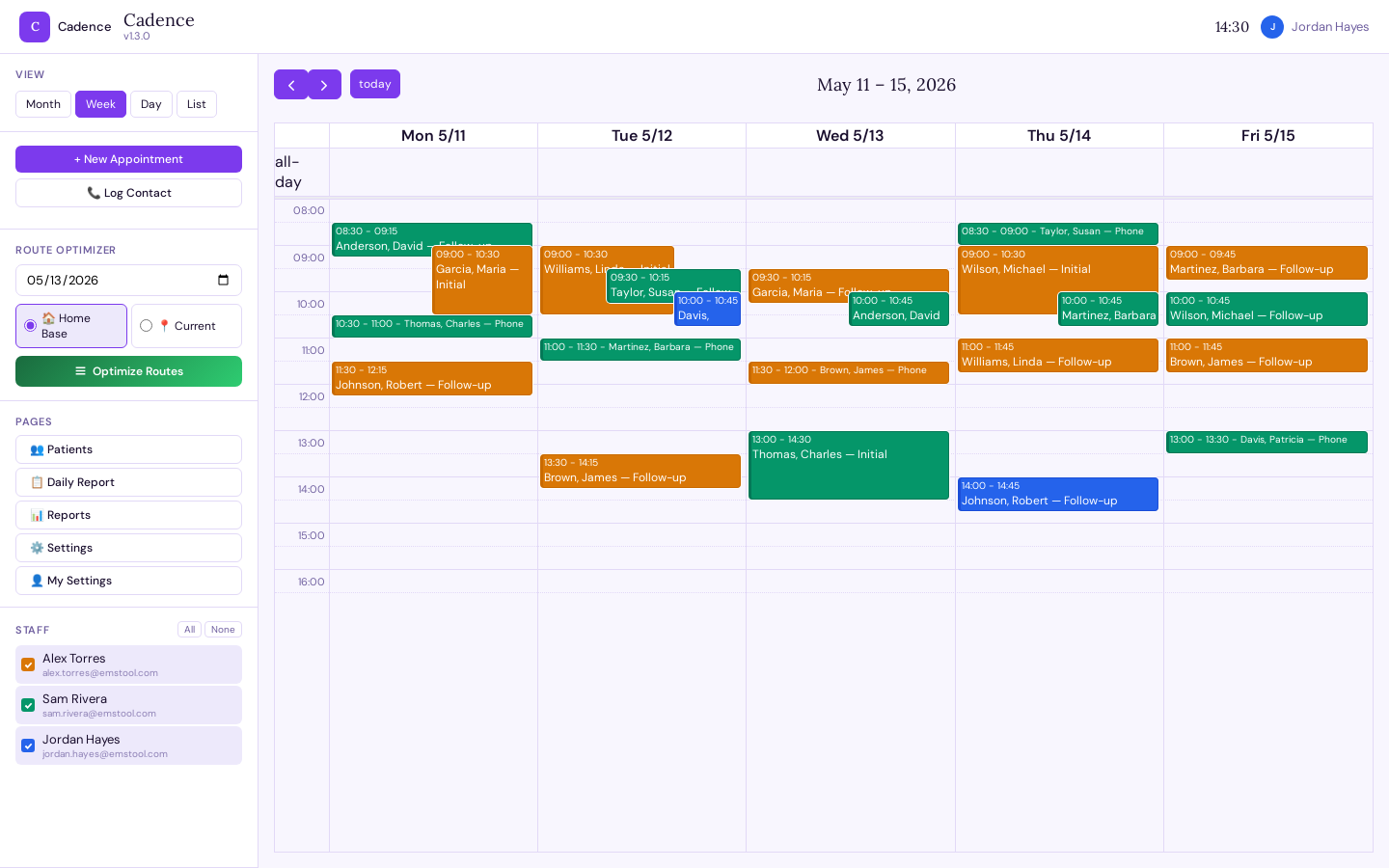
Managers and supervisors see their whole team's calendars (or just the people who've shared theirs); field staff see their own plus anyone who's shared with them. Nobody has to ask "what's on my schedule for Thursday" — it's the same screen, every day.
Smart Schedule
When adding a new patient to the calendar, the question isn't just "when is there a gap?" — it's "which gap wastes the least drive time?" The 📍 Smart Schedule button in the sidebar answers that question before you book.
Find or add the patient
Search by name from the existing patient list, or expand the inline form to enter a new patient's name and address right there — they're saved to the system immediately before routing runs.
Set the date, duration, and which staff to check
All active staff are pre-selected. Uncheck anyone who shouldn't take new visits that day.
See ranked time slots with drive-time impact
Cadence evaluates every gap in each staff member's day — before the first visit, between each pair, after the last — and scores them by added drive time: how many extra minutes inserting this patient would cost versus skipping straight from the previous stop to the next. The ⭐ best slot floats to the top. A slot that falls naturally on the way between two existing appointments can show zero added minutes.
Click Book — the appointment form opens pre-filled
Review, adjust if needed, and save. The calendar updates instantly.
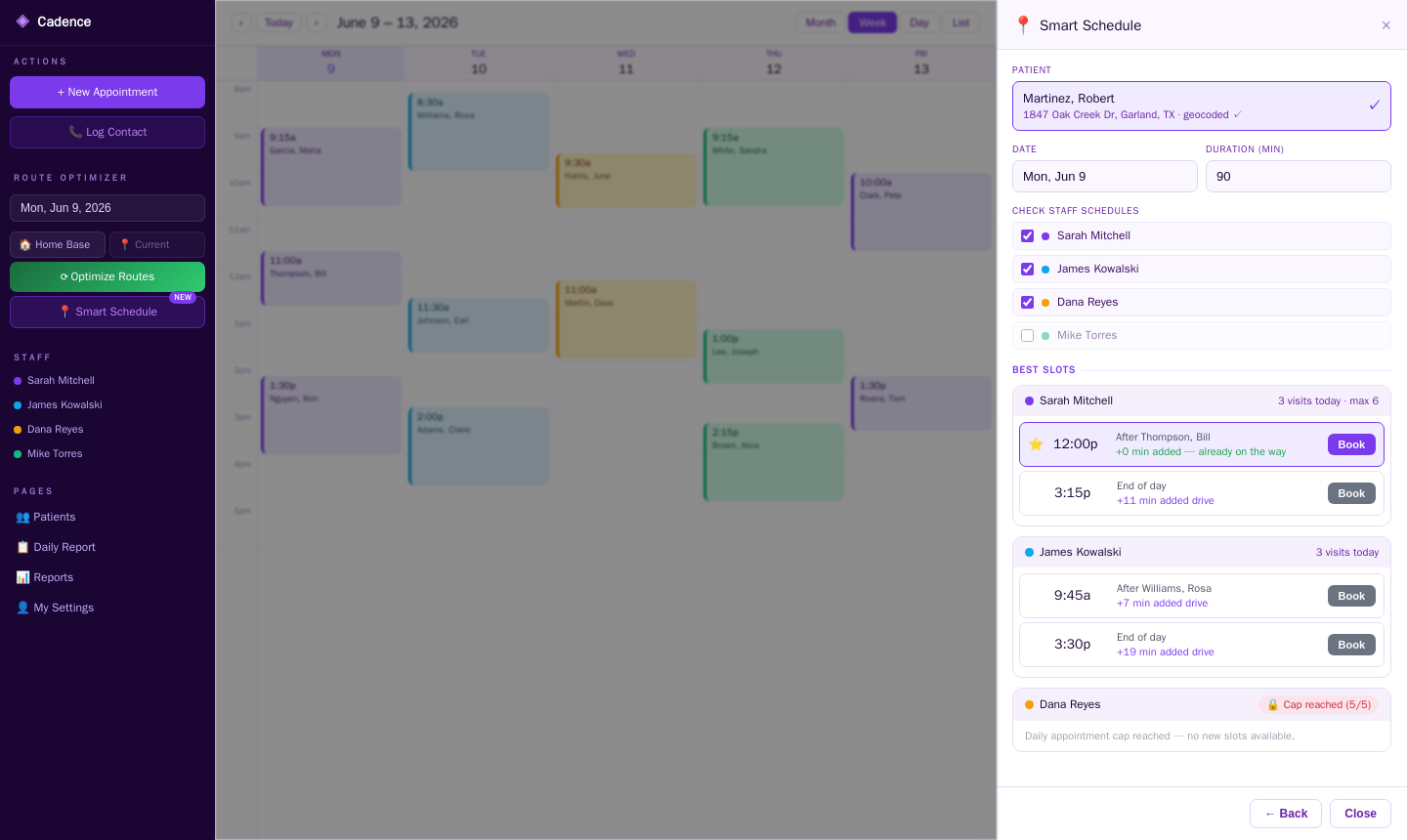
Each staff member can set a Max Appointments / Day in their Settings. When they hit the cap their card shows a 🔒 badge — supervisors can enforce workload limits without manually policing every schedule.
4. Route Optimization
Pick a date, choose a starting point — home base or current GPS location — and Cadence runs the day's visits through four strategies: as-scheduled, nearest-neighbor, OSRM-optimized, and reverse. Each comes back with projected drive time, a per-stop itinerary, and the time saved versus the original plan.
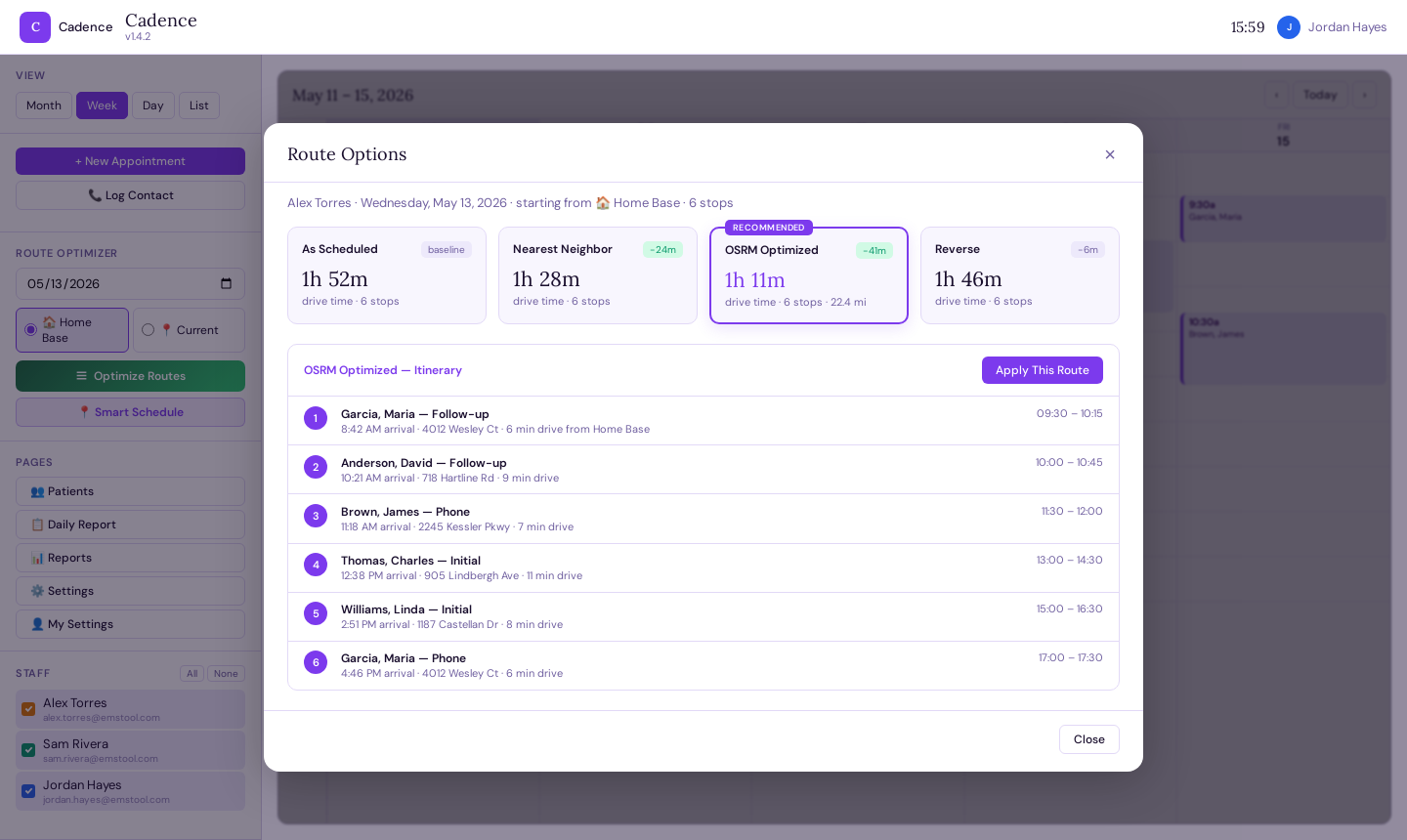
Per-staff travel buffers (default 20 minutes, adjustable in Settings) get added on top of drive time, so the optimized route reflects how your team actually works — not just straight-line math.
5. In the Field
Out on a visit, staff close the appointment right from their phone: mark it completed, no-show, or cancelled, with required reason notes for the latter two. Completing an Initial visit prompts an enrollment decision on the spot — no separate step to remember later.
Phone calls and texts log the same way — Log Contact drops a 15-minute colored block right on the calendar, with contact type (answered, voicemail, physician callback, etc.) and an optional follow-up date. Click it later to edit the time or type if plans changed.
When closing a completed visit for a patient with no active recurring series, Cadence prompts to schedule a follow-up series right then — weekly, biweekly, or monthly, for a configurable number of days — so the next 90 days of visits are booked before the medic drives away.
Everything — appointment closes, contact logs, patient edits — writes to the same patient timeline. By end of day, the record's already built.
6. EMS Charting
Cadence's charting module is a complete clinical documentation system — not a simplified checkbox form or a bolted-on afterthought. When enabled, it gives every provider a NEMSIS v3.5-aligned patient care report organized into seven tabbed sections down the left side, designed to work on a phone in the field or a desktop at the station. Every field auto-saves on change — no save buttons, no lost data if the connection drops mid-call.
Tab 1: Dispatch
EMD card / call complaint, unit number, configurable service types (911 Response, MIH/Community Paramedicine, Acute Care, Interfacility Transport, Mutual Aid, Standby — admin-managed with a default that auto-fills on new charts), response mode (Emergent, Non-Emergent, Scheduled, Standby — hidden for MIH visits), crew primary certification level (auto-filled from the user's profile), crew partner (hidden for solo MIH, shown for transport), and seven call timestamps: Dispatched, En Route, On Scene, At Patient, Left Scene, At Destination, and Back in Service. Scene address with location type, patient count, and one-click copy from the patient's home address.
Tab 2: Patient
Link to an existing patient record — or tap "📷 Scan ID" to open the live camera and read the PDF417 barcode on the back of a driver's license. The barcode reader (using the browser's native BarcodeDetector API) auto-fills first name, last name, date of birth, address, and sex in seconds — no typing. Full demographics for direct-entry patients: sex, race, gender identity, pronouns, weight, address. Insurance card photos (front and back) upload and encrypt alongside the chart. Full billing section: insurance type, company, policy/group/payer IDs, subscriber info, authorization number, or self-pay checkbox.
Tab 3: History
The full SAMPLE mnemonic built into the form:
S — Signs & Symptoms: Chief complaint (free text), symptom onset (datetime), duration, possible injury flag, and initial patient acuity (Critical/Emergent/Lower Acuity/Non-Acute).
A — Allergies: Separate fields for medication allergies and environmental/food allergies.
M — Medications: A smart autocomplete picker with 200+ built-in medications searchable by generic or brand name — type "lipitor" and it finds "Atorvastatin (Lipitor)." Admins can add custom medications from the Charting Settings page. Each medication is added as a tag that auto-saves instantly. Press Enter or click "+ Add" for any medication not in the database.
P — Past Medical History: Same smart picker pattern — 100+ EMS-relevant conditions organized by body system (Cardiovascular, Respiratory, Neurological, Psychiatric, Endocrine, Renal/GI, Oncology, Hematology, Musculoskeletal, Infectious, Devices, Surgical). Admins manage the list. Infectious conditions (HIV/AIDS, Hepatitis B/C, Tuberculosis, MRSA) automatically flag the patient with a red warning badge visible across the system.
L — Last Oral Intake: Free text with time.
E — Events: Advance directives, history obtained from (multi-select), alcohol/drug use indicators (NEMSIS-standard checkboxes), pregnancy status (hidden unless patient sex is female), and barriers to patient care.
Tab 4: Exam
Structured physical examination across 14 body regions: Skin, Head, Face, Eyes/Pupils, Neck, Chest, Lungs/Breath Sounds, Heart/Cardiovascular, Abdomen, Pelvis/GU, Back/Spine, Extremities, Neurological, and Mental Status. Each region is a free-text field — document normal findings or abnormalities. Every field auto-saves on blur.
Tab 5: Vitals & Procedures
Vitals and procedures share a single chronological timeline — interleaved by time so the chart reads like the call actually happened. Add vitals sets with one click: SpO₂, blood pressure (systolic/diastolic), heart rate, respiratory rate, temperature, blood glucose, GCS (interactive Eye/Verbal/Motor selector with auto-calculated total), AVPU (tap-to-select modal), and pain scale. Each vitals row auto-saves on input change.
Procedures are selected from an admin-configurable intervention library — organized by category (Airway, Medications, Vascular Access, Cardiac, CPR, BLS, or custom categories). Each procedure type has its own custom field schema: for example, Invasive Airway captures tube type, size, depth, attempts, and confirmation method (multi-select checkboxes: EtCO₂, Chest Rise, Lung Sounds, CXR). Admins build these schemas in the Interventions management page — add fields, reorder, set types (text, number, select, textarea, checkboxes). Procedures can have image attachments (e.g., 12-lead ECG capture). QA-flagged procedures trigger automatic supervisor review alerts when the chart is locked.
Tab 6: Narrative
Three narrative formats: Freeform, SOAP (Subjective/Objective/Assessment/Plan), or D-CHART (Dispatch/Chief Complaint/History/Assessment/Rx Treatment/Transport) — selecting SOAP or D-CHART injects the template headers. Provider primary and secondary impressions. Patient condition at destination.
Disposition drives the entire downstream workflow:
• Treated & Released / Transported / Acute Care → treatment consent signature required
• Refused Care → refusal acknowledgment signature required
• Transferred Care → consent configurable (can be turned off in settings)
• Cancelled / Standby / No Treatment / Dead at Scene → no consent required
• Acute Care — Handed Off to Crew → opens an EMS handoff documentation panel (receiving unit, crew names, handoff time, handoff notes)
• Transported by EMS → shows crew partner fields + requires partner signature
Destination field has facility autocomplete — searches a managed facilities database plus all previously used destinations.
Tab 7: Signatures
The consent form shown here is determined by the disposition — treatment/transport/HIPAA consent, refusal acknowledgment, or "no consent required." Each is a separate document managed by administrators, with its own version hash. Changing the disposition changes the consent form in real time. The patient or authorized representative signs on a canvas signature pad (touch or mouse, HiDPI-aware) with signer name and relationship (Self, Parent, Guardian, Spouse, Power of Attorney, Other). Signatures are encrypted (AES-256-GCM) and stored as tamper-evident records.
When the disposition is "Transported by EMS," a second signature pad appears for the crew partner — documenting that a second provider participated in transport.
Pertinent images (wound photos, scene documentation, ECG captures) upload and encrypt alongside the chart — accessible only to users with chart read access.
Locking, co-sign & QA
Locking the chart validates that all required fields are present (patient, disposition, consent signature if required), auto-deducts supplies from the unit's inventory based on procedure supply rules, and — when co-sign is enabled — routes the chart to the author's supervisor for a second canvas signature before finalization. Charts with invasive or high-risk procedures are automatically flagged for QA review, generating a supervisor alert in the review panel. The supervisor can review the chart, acknowledge the QA flag, and co-sign — all tracked in the audit log.
Fully admin-configurable. Service types, procedure categories, intervention field schemas, medical conditions, medications, consent form text, co-sign requirements, QA flags, chart number prefixes — all managed from a dedicated Charting Settings page. No code changes required to adapt Cadence to your program's protocols.
6b. Clinical Video Consult
Live video calling built directly into the chart — a medic can start a call from an active chart to reach a physician for a consult, or connect a patient with Online Medical Control (OLMC), without leaving the platform or relying on a third-party video app. The initiating medic sends a magic link (via SMS or email) to the physician or recipient — no separate account or login required on their end. Opening the link joins them directly into the call.
Every call is logged with the call type, timestamps, participants, and — for OLMC calls — a stated purpose (Consult or Refusal), giving a complete record of every medical control contact.
OLMC is always available, regardless of license tier. Cadence treats medical control access as a patient care necessity, not a paid add-on. Every other video call type requires the Video Consult feature to be licensed for the account.
7. Daily (EOD) Reports
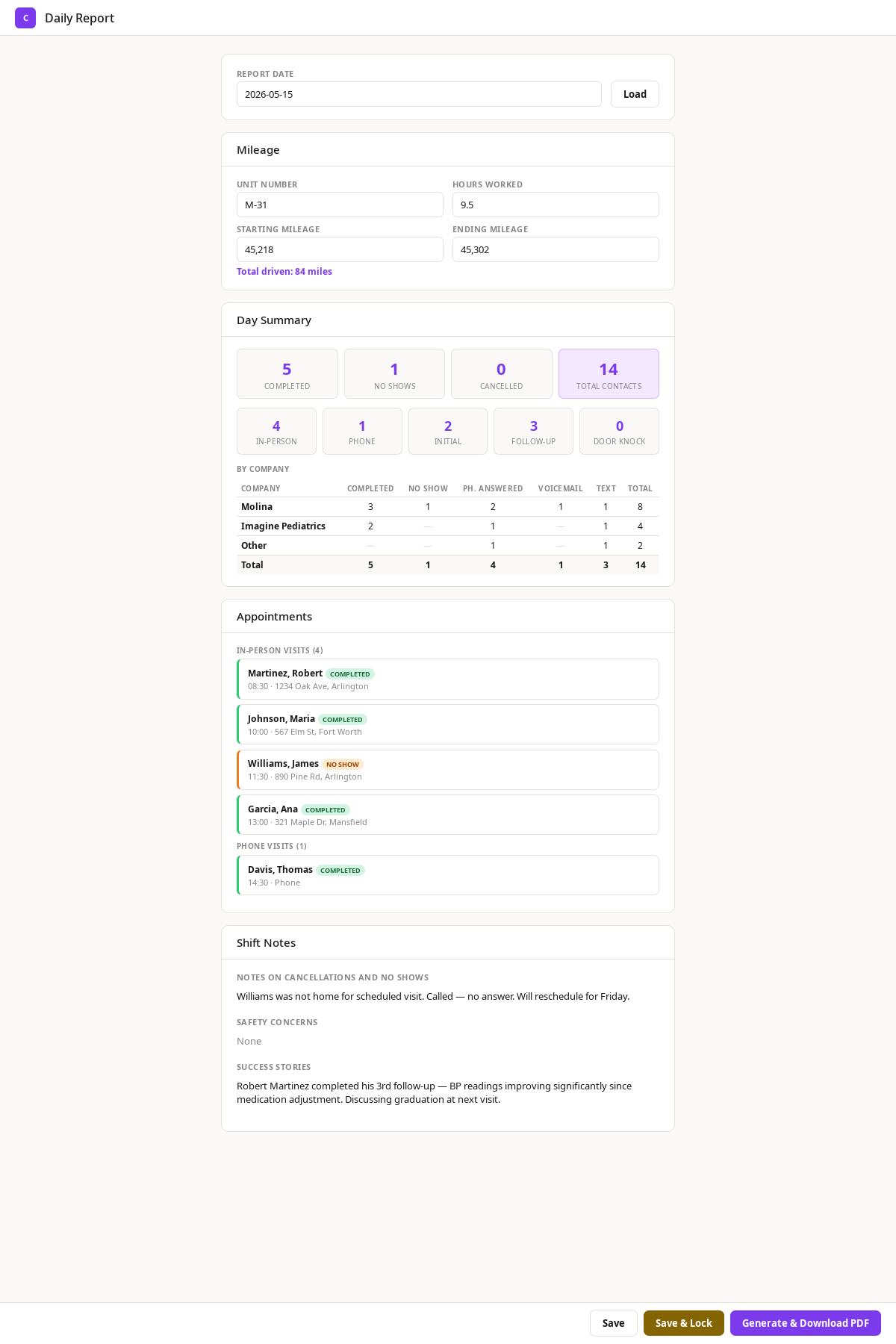
At shift's end, the daily report is mostly pre-filled from the day's data: completed visits, no-shows, cancellations, phone calls, texts — broken down by company and contact type. Start and end mileage calculate total miles driven. Staff add narrative notes in four fields — cancellations/no-shows, safety concerns, events, and success stories — then lock the report.
Locking creates a timestamped compliance record: only a supervisor or admin can unlock it, and that unlock action is logged in the audit trail. Locked reports can be exported as PDF for email delivery or offline filing.
For days when the system wasn't in use (backfilling previous weeks, transition periods), a Manual Entry mode lets staff type in visit counts, total mileage, and appointment notes by hand — same locking and compliance trail as auto-generated reports.
8. Manager Oversight
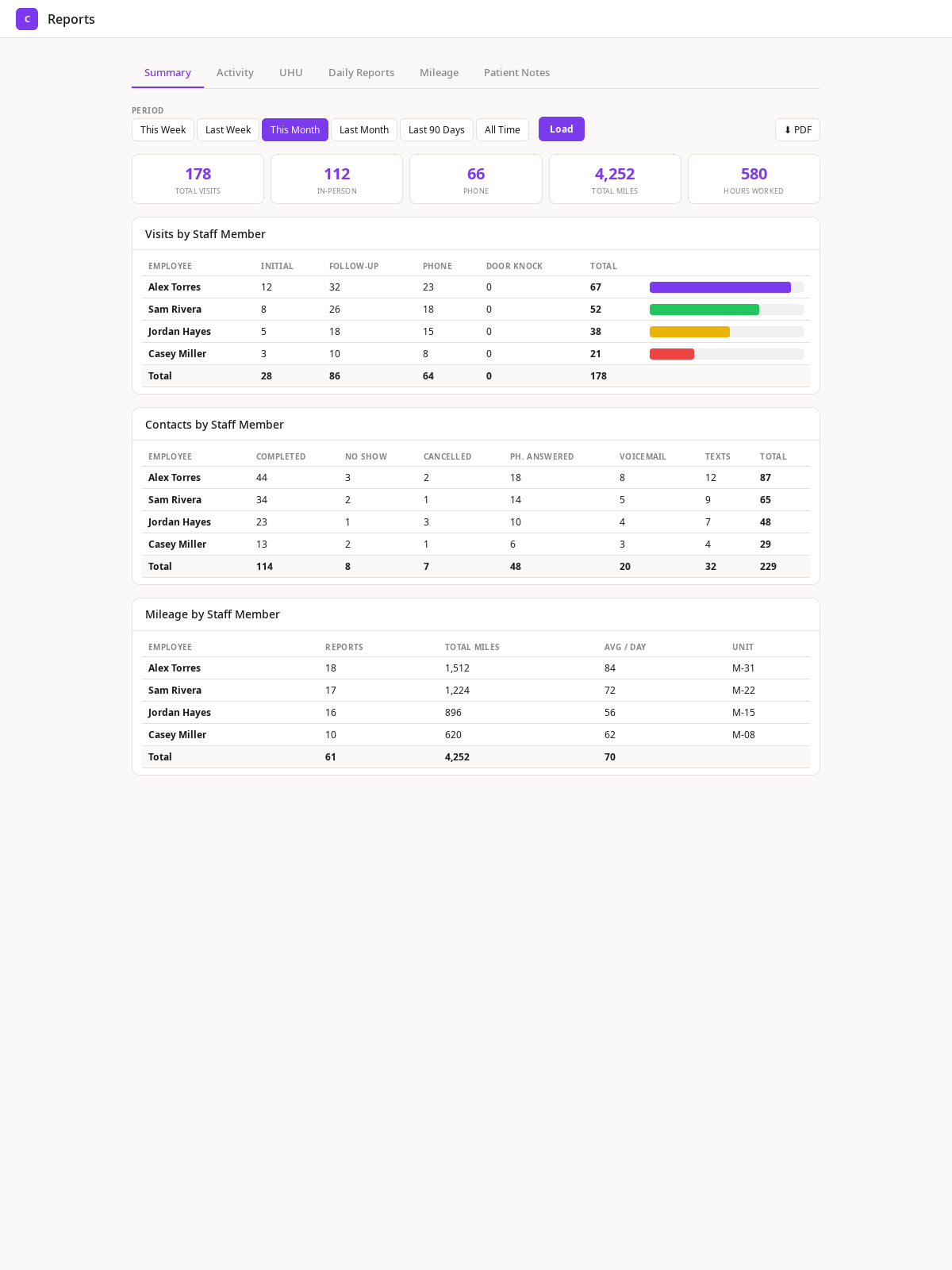
Supervisors and managers get a Reports dashboard scoped to their org subtree (or the whole organization for admins). From the calendar sidebar, supervisors can tap the 📅 icon next to any crew member's name to open a popup calendar showing that person's full schedule — appointments, contacts, and day labels — without leaving their own view. Navigate between crew members with arrow buttons, see each person's assigned zones below their name, and close with ESC. No calendar sharing required at the supervisor level. Six reporting tabs cover every angle:
Summary
The at-a-glance view: total visits, completed count, total miles, contacts logged — across the whole team for the selected period. Three breakdown tables in org-tree format with named team totals: Visits by Staff (Initial + Follow-up with completed/NS/cancelled), Contacts by Staff (Door Knock, Phone Visit, calls answered/voicemail/no answer, physician calls, texts), and Mileage by Staff (total miles, average per day, unit). Hide Empty button removes zero-activity staff. Period filters — this week, last week, this month, all time, or custom date range. One-click PDF export. Full-width layout for readability.
Activity
Activity totals per staff member in org-tree format — Initial, Follow-up, Phone, Door Knock, Contacts, Total. Named team totals roll up under each team leader. Filter by staff, period, and group by day or week. "Hide Empty" filters out zero-activity rows. For individual staff, switches to a date-by-date breakdown showing daily visit patterns.
UHU (Utilization)
Unit Hours Utilization — visits ÷ worked hours per staff member. Columns: Initial, Follow-up, Total Completed, Hours Worked, UHU, and Goal. Color-coded with bold solid-fill zone indicators: purple (exceptional), green (on target), yellow (below target), red (critical) — instantly distinguishable at a glance. Per-employee target overrides. Trend view shows This Month, Last Month, and Last 90 Days side by side in a single table for performance comparison over time. Hide 0 UHU and Hide 0 Hrs buttons filter out inactive staff and their team totals. All views render in org-tree format with named team totals.
Daily Reports
Every staff member's locked and open EOD reports in one table — visit counts, phone contacts, miles, and lock status. View any report, download PDFs, and unlock locked reports when corrections are needed (unlock action is audit-logged). Open reports are flagged so supervisors can follow up on missing submissions.
Mileage
Total miles, days worked, average miles per day — per staff member with unit assignment. Totals row. Useful for fleet management, fuel reimbursement, and identifying routing inefficiencies before they become budget problems.
Patient Notes
Searchable timeline of every patient note across the team — phone calls, appointment outcomes, contact logs — with note type, patient name, and content preview. Filter by staff, date range, and note type. Gives supervisors visibility into the quality and frequency of patient communication without opening individual records.
Staff Directory
A searchable Staff Directory page lists every active team member with their name, role, phone number (click-to-call), and email. Phone numbers also appear in the calendar sidebar under each staff member's name — tap to call from the field. Search by name, role, or phone number. Accessible from the navigation menu on every page.
Ready to see it on your own data? Request a live demo.